
TP-Link Tapo
TP-LINK SYSTEMS INC.Lifestyle
4.68.06K Reviews
- Version
- 3.22.105
- Installs
- 10.00M
- Age Rating
- Everyone
Screenshots
Our Review of TP-Link Tapo
 Analysis by Appyee
When I first considered a smart-home app, I wanted one useful thing to work without turning my evening into a networking project. TP-Link Tapo is built around that practical idea: it gives you a phone-based way to manage compatible Tapo devices, with everyday controls such as switching a plug or light and checking a camera. It is a free lifestyle app from TP-LINK SYSTEMS INC., and its audience is broad: the age rating is Everyone, while optional in-app purchases range from $2.49 to $199.99 per item. The app has a 4.6 average from around 456,000 ratings and more than 10 million installs, so it is a well-established choice rather than a niche experiment.
What to expect from a Tapo home setup
The app is most appealing if you own, or are planning to buy, Tapo hardware. Think of it as the control point for that collection, not as a universal remote that automatically brings every brand of smart-home equipment together. That distinction matters before you install: if your home already revolves around another manufacturer’s devices, its own app may be the more convenient place to start. Tapo makes the most sense when you want one place for compatible lights, plugs, cameras, and other devices in its family.
I like that this approach offers a fairly clear first goal. You do not need to automate an entire home on day one. Start with one device that solves a small annoyance, such as a lamp that is awkward to reach or a plug you want to switch off without walking across the room. Once that works, you can decide whether schedules, camera viewing, or voice control would actually improve your routine. That keeps the experience grounded in a real need instead of buying smart gear simply because it sounds impressive.
From installation to pairing your first device
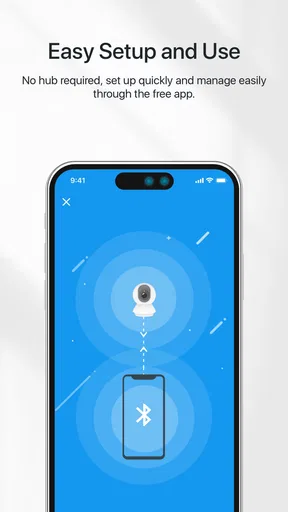
The app is free to install, and its current version is 3.16.185. It supports Android 7.0 and later; iPhone users can find it through the App Store as well. I would install it while standing near the device you intend to add and make sure your phone has a stable Wi-Fi connection. The app’s guided setup is meant to lead you through pairing, but having the device close at hand makes it easier to follow prompts and check its response as you go.
For a first purchase, a smart plug is a useful way to learn the basics because the result is easy to understand: the app can switch a plugged-in lamp or another suitable appliance on or off. Before relying on any smart plug for a particular item, check that the item is appropriate for that device and follow the hardware instructions. Pairing successfully is only the start; give the control a quick test from the same room before you build a schedule around it.
Your first useful win: make a routine dependable
A small schedule is often a better first success than a complicated automation. For instance, if you use a plug for a lamp in the evening, set a time that suits your routine, then watch whether it behaves as expected over a few days. The useful question is not whether the app has lots of controls, but whether this one change removes a repeated task without creating a new one. If your schedule varies, manual control may be more practical than trying to make a fixed timetable fit every day.
There is also a helpful distinction between local convenience and remote convenience. A command from your phone is only reassuring when the device and network are responding as expected. Before leaving home and assuming a device will follow a routine, test it in advance. For a camera, try opening its feed while you are at home and learn where the relevant controls are before you need to check in from elsewhere. That low-pressure trial helps you tell the difference between an unfamiliar screen and a genuine connection problem.
Small habits that make the app easier to live with
One practical tip is to add devices gradually and give each one a name you will recognize later. A label such as “living-room lamp” is more useful than a vague name when you have several plugs or lights, especially if you later use voice control. It also makes schedules easier to review: you can see which object a routine affects before changing it. I would test a new schedule with a low-stakes device first, rather than making the first experiment control something you depend on every morning.
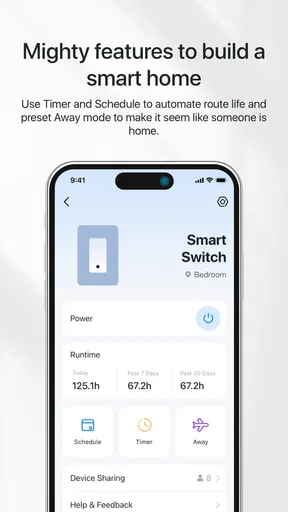
Another useful trade-off is deciding where automation helps and where a manual tap is safer. A schedule can reduce forgetfulness, but a fixed time may not match a late night, a changed workday, or a trip away. If your plans are irregular, keep the control easy to reach and treat the schedule as a convenience rather than a promise. For Away Mode, check which compatible devices and settings are involved in your own setup, then try it before a real trip so you understand how it behaves. It is a way to vary device activity, not a substitute for sensible home security.
Where the experience can feel less smooth
Connectivity is the main practical caveat. A device that responds slowly when your internet connection is weak can make the app feel unreliable, even when the cause is the network rather than the screen itself. If a command seems delayed, I would check whether the phone has a usable connection, whether the device is powered, and whether it responds when you are closer to home before repeatedly tapping the control. Repeated commands can make it harder to tell what action actually went through.
Remote access is useful, but it should not be confused with guaranteed access from every location or on every network. If checking a camera or changing a plug matters while you are away, test that exact use before depending on it. People who want a single dashboard for a mixed-brand smart home may also find the Tapo-centered approach limiting; a broader ecosystem or a platform they already use could be a better fit. Likewise, someone who does not own compatible hardware will have little reason to keep the app installed by itself.
How it fits beside other smart-home options
Compared with controlling each device through its physical switch, Tapo adds remote access and the possibility of schedules, which is valuable for a lamp or plug you regularly forget. Compared with a separate app for every brand, it is more straightforward when your devices are from the Tapo family. The trade-off is that a dedicated manufacturer app is not automatically the best home for every device you own. If you already use Google Home, voice control can make common actions feel more natural; I would still keep the Tapo app as the place to set up and inspect its own devices.
The app is particularly suitable for someone who wants to start small, is comfortable using Wi-Fi-connected hardware, and prefers a guided route into basic control. It is less compelling for a person who wants to avoid account-based app management altogether, expects every brand to work in one place, or rarely needs remote or scheduled control. The right choice depends less on how many features are available than on whether your devices and habits match the way Tapo is organized.
What happens after the first device works
Once the first plug or light responds reliably, expand only when you can name the problem the next device will solve. A camera may be useful if you want to check a particular space while away; another plug may help with a lamp or appliance you routinely operate by hand. Add one at a time, verify its basic control, and then decide whether a schedule is worth setting up. This deliberate pace makes it easier to notice which features genuinely help and which would just add more settings to manage.
For users who enjoy tinkering, the app’s connections with Google Home and IFTTT can take routines beyond a simple tap or timer. I would begin with one small voice command or automation and make sure it is predictable before layering on more. A custom setup can be satisfying, but it also creates more places to troubleshoot if a device does not respond. Beginners can comfortably ignore those options until they have a reason to use them.
Getting Started with TP-Link Tapo
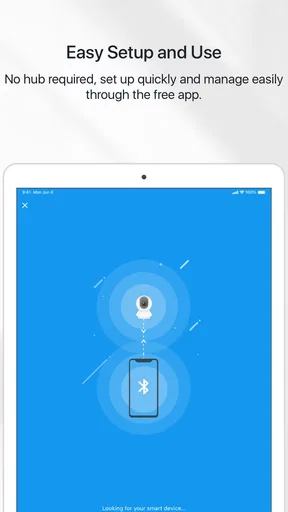
First things first, setting up the TP-Link Tapo app was a breeze. I downloaded it from the Play Store, and it was up and running in a matter of minutes. The app guides you through each step with clear instructions, so there’s no room for confusion. All you need is a stable Wi-Fi connection and a Tapo device—be it a smart bulb, camera, or plug.
I started with a Tapo smart plug. Pairing the plug with the app was straightforward; the app detected the device almost instantly. If you’re like me and dread complicated setups, you’ll appreciate how seamless this process is.
Features That Stand Out
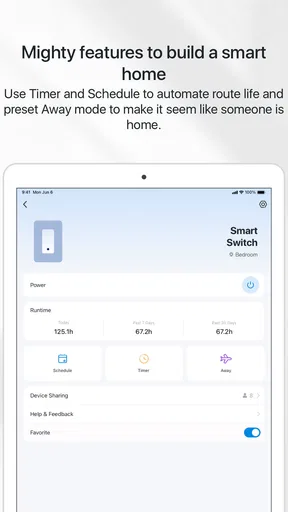
The app’s interface is clean and user-friendly, which is always a plus. You can easily navigate through the options to control your smart devices. One feature I found particularly nifty is the scheduling option. You can set your devices to turn on or off at specific times, which is perfect for those of us who are forgetful or just plain lazy.
Another handy feature is the Away Mode. If you’re going on vacation and want to make it look like someone’s home, this is your go-to. The app will randomly turn your devices on and off, adding an extra layer of security.
Performance and Reliability
I’ve been using the app for a couple of weeks now, and I must say, it’s pretty reliable. The app rarely crashes, and commands are executed almost instantly. Whether I’m turning on a light or checking the feed from my Tapo camera, everything works smoothly.
One thing I noticed is that the app performs best with a strong Wi-Fi connection. There were a couple of times when I tried to control my devices from a different location with spotty internet, and it took a bit longer to respond. But honestly, that’s more of a network issue than a problem with the app itself.
Integration with Other Devices
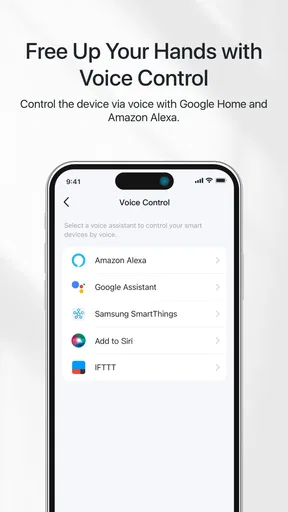
If you’re into smart home ecosystems, you’ll be happy to know that the Tapo app can integrate with other smart devices. I managed to connect it with my Google Home, and it was like having my own personal assistant. You can use voice commands to control your Tapo devices, which is pretty cool if you ask me.
For those who are a bit more advanced, the app also supports IFTTT, allowing you to create custom automations. This is great for tech aficionados who want to take their smart home setup to the next level.
Final Thoughts
At the end of the day, the TP-Link Tapo app offers a convenient way to manage your smart home devices without any fuss. It’s perfect for both beginners and those looking to expand their smart home capabilities. The app is reliable, easy to use, and packed with features that genuinely enhance your daily life.
If you’ve been on the fence about diving into the world of smart homes, I’d say give the Tapo app a try. It’s an excellent place to start, and who knows, you might just find yourself wondering how you ever lived without it.
Ready to turn your home into a smart one? You can download the app from the Play Store or App Store and start exploring its features today!
Privacy and Permissions
See what permissions an app requests and how it handles your data.
- Location
- approximate location (network-based), precise location (GPS and network-based)
- Phone
- read phone status and identity
- Photos/Media/Files
- read the contents of your USB storage, modify or delete the contents of your USB storage
- Storage
- read the contents of your USB storage, modify or delete the contents of your USB storage
- Camera
- take pictures and videos
- Microphone
- record audio
- Wi-Fi connection information
- view Wi-Fi connections
- Device ID & call information
- read phone status and identity
- Other
- view network connections, pair with Bluetooth devices, access Bluetooth settings, change network connectivity, allow Wi-Fi Multicast reception, connect and disconnect from Wi-Fi, control flashlight, full network access, change your audio settings, run at startup, draw over other apps, control vibration, prevent device from sleeping
Verdict
Strengths of TP-Link Tapo
- User-friendly interface for easy navigation.
- Seamless integration with smart home devices.
- Reliable remote access via the app.
- Customizable alerts and notifications.
- Regular firmware and app updates.
Limitations of TP-Link Tapo
- Limited compatibility with non-TP-Link devices.
- Occasional connectivity issues reported.
- No support for Apple HomeKit.
- Requires stable internet for optimal use.
- Limited advanced features for power users.
Other Releases by TP-LINK SYSTEMS INC.
View All
Kasa Smart
Lifestyle4.7

TP-LINK tpCamera
Libraries & Demo4.1
Similar Picks in This Category
View All
SmartThings
Samsung Electronics Co., Ltd.4.6

Google Home
Google LLC4.0

Pinterest4.2

Astrotalk - Talk to Astrologer
Astrology & Horoscope4.7

My Verizon
Verizon Consumer Group4.5

Samsung Wallet (Samsung Pay)
Samsung Electronics Co., Ltd.4.1
Frequently Asked Questions
What is TP-Link Tapo, and what does it do?
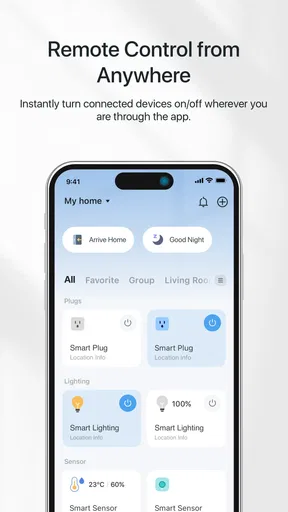
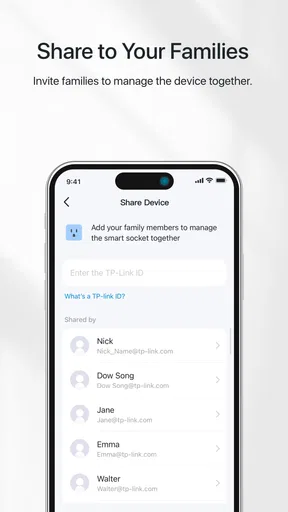
TP-Link Tapo is a smart home app designed to control various TP-Link smart devices such as cameras, plugs, and light bulbs. It allows users to manage these devices remotely, set schedules, and customize settings to enhance home automation. The app offers a user-friendly interface and robust security features to ensure a seamless smart home experience.
Is TP-Link Tapo compatible with voice assistants like Alexa and Google Assistant?
Yes, TP-Link Tapo is compatible with popular voice assistants such as Amazon Alexa and Google Assistant. This integration allows users to control their smart devices using voice commands, providing a hands-free experience and further enhancing the convenience of managing your smart home devices.
What devices can I connect to TP-Link Tapo?
TP-Link Tapo supports a variety of smart devices, including security cameras, smart plugs, and smart light bulbs. Each device can be managed through the app, allowing users to check camera feeds, control lights, and manage power usage of connected devices, all from a single platform.
How secure is the TP-Link Tapo app?
The TP-Link Tapo app prioritizes user security by implementing encryption and privacy protection measures. Data transmitted between the app and devices is encrypted to prevent unauthorized access. Regular updates and security patches are provided to address any potential vulnerabilities, ensuring a secure smart home environment.
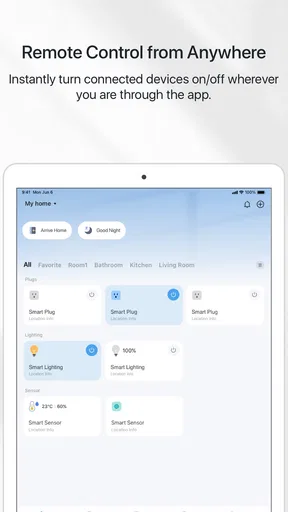
Can I use TP-Link Tapo when I’m away from home?
Yes, TP-Link Tapo allows remote access to your smart devices, enabling you to control and monitor them even when you're not at home. With an internet connection, you can use the app to adjust settings, view real-time camera feeds, and receive notifications, ensuring peace of mind while you’re away.
